
Connect ChatGPT
ChatGPT working for your family, when you open it or on a scheduled task.
ChatGPT can work for your family. It takes requests when you open a chat, or when a scheduled task in ChatGPT runs. It takes what is due one request at a time.
You add Sprout on a computer, on the web. ChatGPT cannot add it from a chat or from the phone app. Short address for this page: https://sprt.me/chatgpt
Sprout’s address
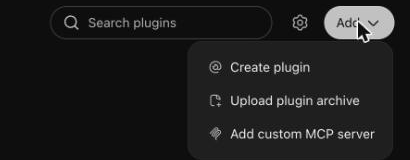
https://api.sproutgoodhabits.com/mcp- On chatgpt.com, open Plugins, press the + at the top right, then Add custom MCP server.
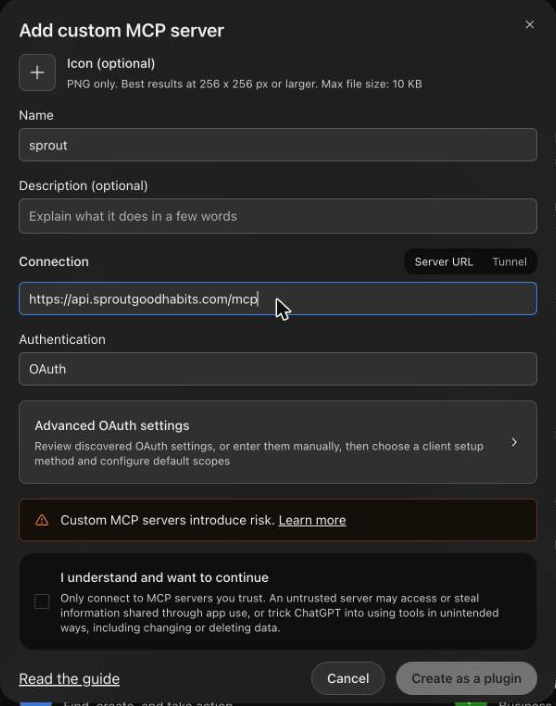
- Name it sprout. Server URL: https://api.sproutgoodhabits.com/mcp Authentication: OAuth.
- Tick "I understand and want to continue", then Create as a plugin, then Install and Connect.
- Sign in to Sprout when it asks. Approve the permissions it shows. Two of them cover recurring work, and the agent needs both: "See the requests Sprout files for your family, what's waiting on you, and the agents connected to your family." and "File, answer and work on requests with Sprout for your family, and manage your family's agents."
- Start a Work chat (ChatGPT's Work mode) and tell it: "Work for my family on Sprout." A Work chat sees your other connected apps, like Gmail and Google Calendar; a regular chat only uses the apps you mention with @.
The agent then registers itself and Sprout gives it a name. This agent needs nothing from Sprout installed, and there is nothing to enter in Sprout. Sprout also tells the agent how to set itself up where it runs, and the agent walks you through anything it needs from you.
Before a scheduled task runs on its own:
- Make sure Sprout, and each account the work reads, is available in the chat where you create the task.
- Open Sprout's permissions in ChatGPT and choose Allow all actions (some versions call it Never ask), if your workspace offers it. A setting that asks before changes stops a scheduled run, because taking and finishing a request changes things in Sprout. This choice covers everything Sprout can do in ChatGPT, not only this work.
- Click Run now on the task, and check that it finished without waiting for an approval.
Good to know:
- Without a scheduled task, ChatGPT only works while you have it open.
- If ChatGPT does not offer that permission, or a run still waits for an approval, you or your workspace admin has to change it. Until then ChatGPT works when you open it.
- Turn its own notifications off: Sprout decides when to pull you in, and tells you in chat.
- ChatGPT's own help says which plans can add a custom MCP server, and what each plan's plugin may do.
- On a phone you can use Sprout once it is added on the web; the phone app cannot add it.
Related
- What happens after you connect an agent: Where the agent shows up, how requests reach it, and which accounts it can read.
- What an agent cannot do yet: When an agent is not running, and what is not available yet.
- Connect Codex on your computer: Codex in its app or the command line, checking for work on a schedule.