
Set up the apps and your family
Five steps from download to your child's first task. The parent app lives on your iPhone; the kid app lives on your child's iPad.
1. Create your parent account
Download the Sprout parent app on your iPhone and sign up with your email. Everything in Sprout starts from your account: your child never creates one of their own.
2. Verify parental consent
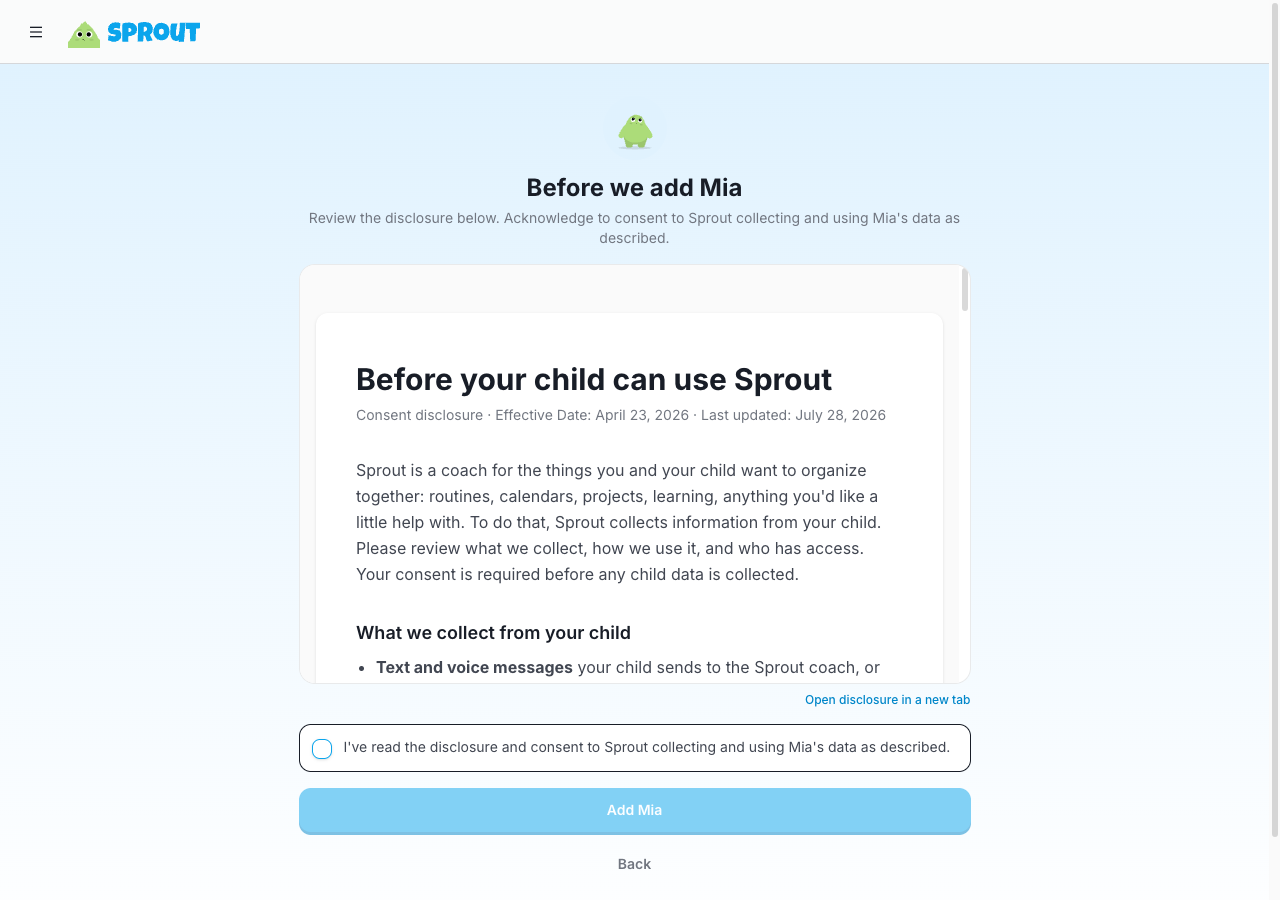
Before your child can use Sprout, we ask you to verify that you are their parent or guardian. We use Kids Web Services (KWS) for this step. It exists because the law, rightly, requires companies to get a parent's verifiable consent before collecting anything from a child. Completing it unlocks everything your child will use.
3. Add your child
In the parent app, add your child with a name and age. The age matters: it shapes what your child sees and how Sprout talks to them.
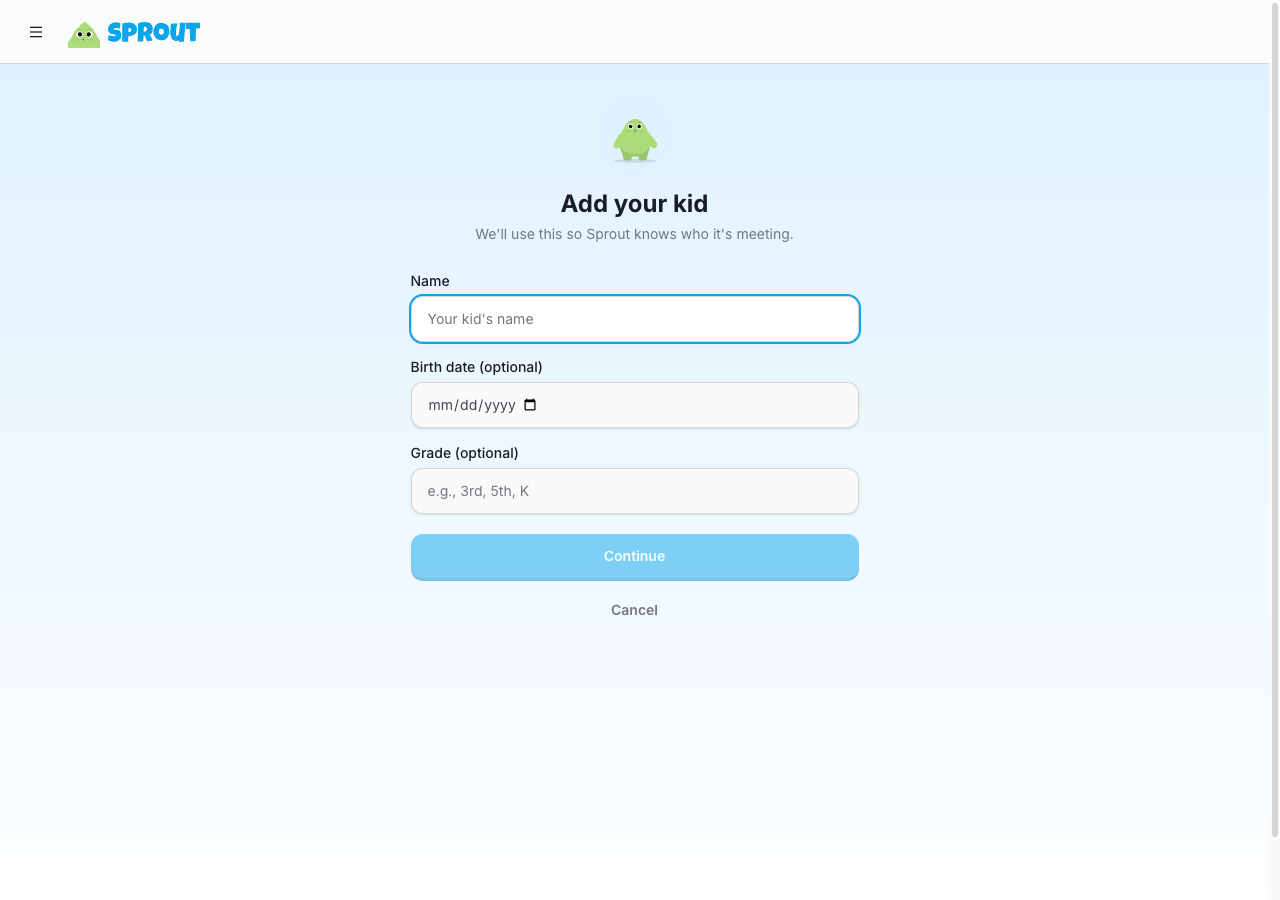
Done when: you can open the parent app and see the correct child in your family.
4. Pair your child's iPad
Install the Sprout kid app on your child's iPad, then scan the QR code from your parent app, or type in the short code if scanning is awkward. Pairing links the iPad to your family, with you in charge from your iPhone.
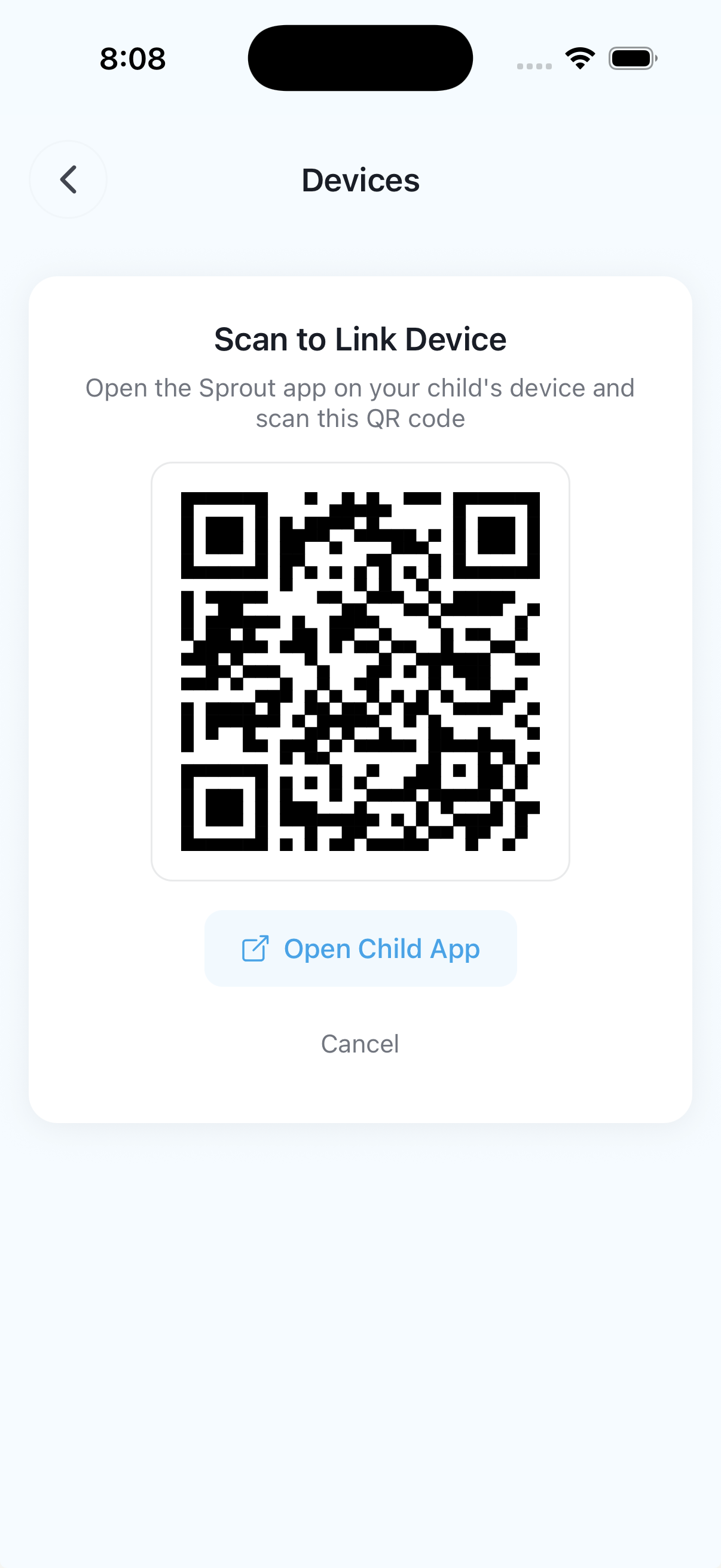
Done when: the kid app opens the correct child home and the parent app shows that device as paired.
5. What your child sees first
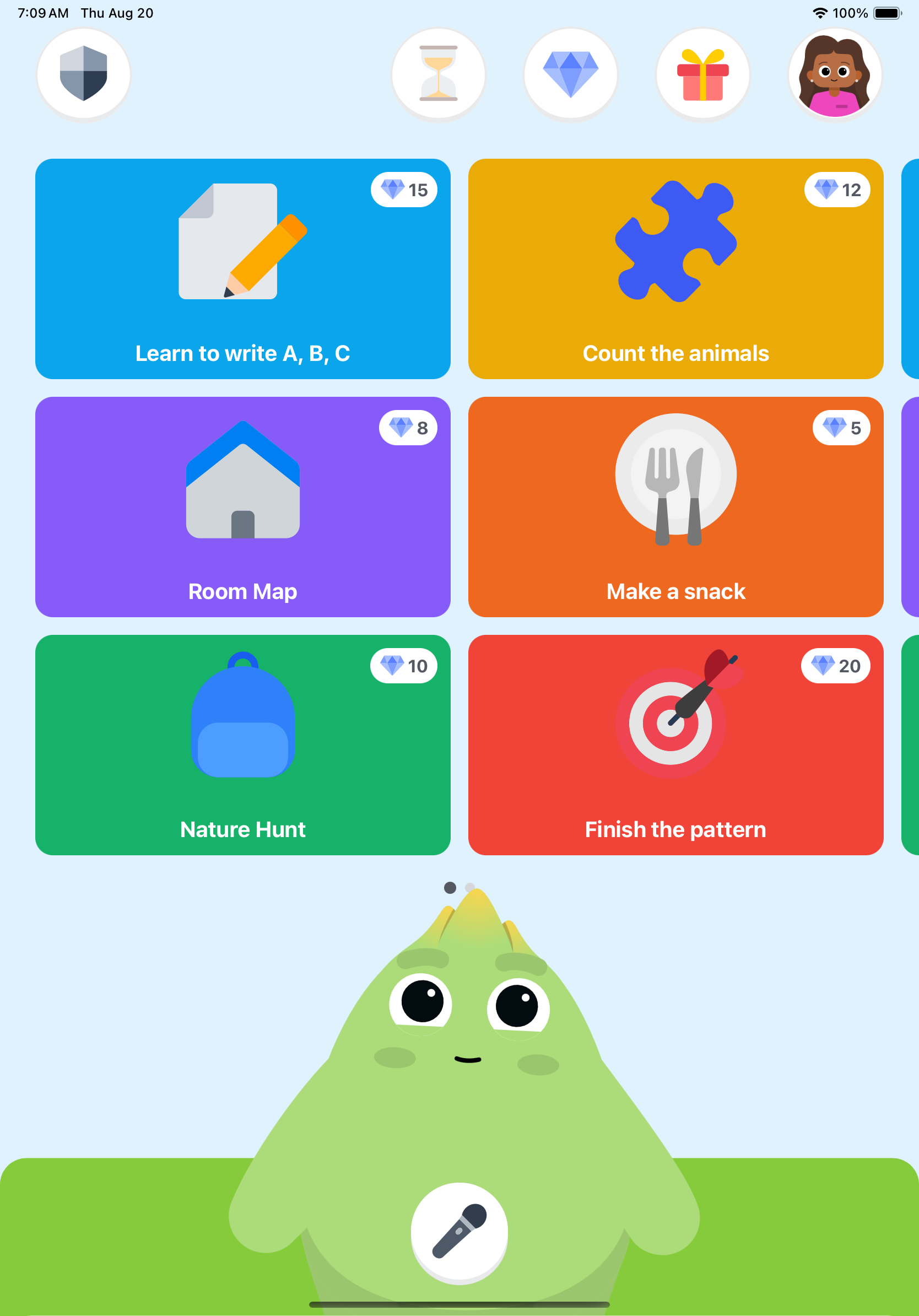
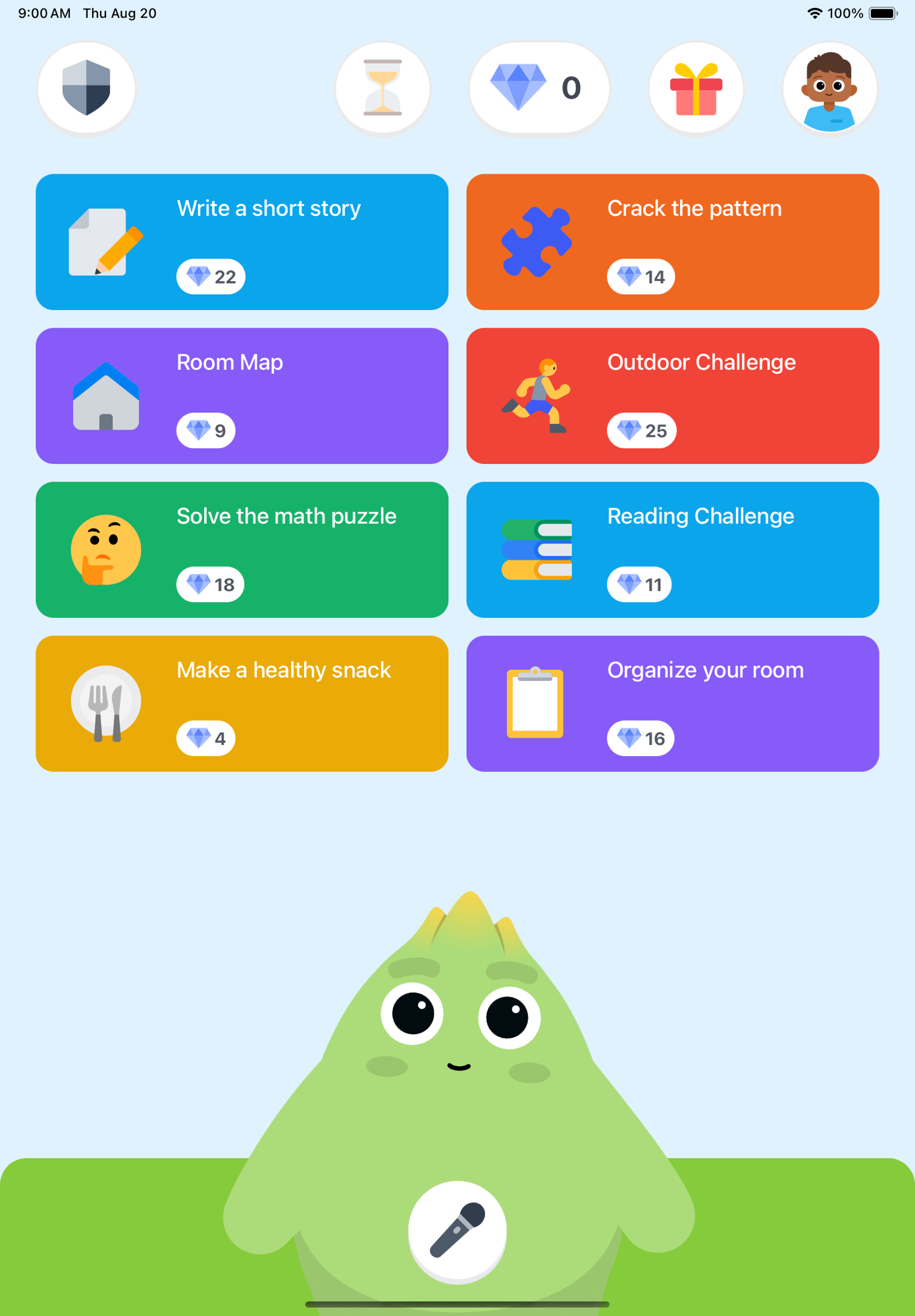
Your child lands on their home screen: today's tasks, their gem balance, and Sprout, their coach. There is nothing to configure on their side. When you assign the first task from your iPhone, it simply appears.
Common questions
Notifications aren’t arriving
First check that notifications are allowed for Sprout in your iPhone’s Settings. If they are on and still nothing arrives, force-quit the app and reopen it, which refreshes the connection. Still quiet? Write to us and we will look at your account from our side.
Screen Time and gems
Gems are what your child earns by completing tasks, and they can spend gems to unlock Screen Time you have approved. You decide the schedules and the exchange, and your child sends requests when they want more. Nothing unlocks without going through the rules you set.
Tasks and canvases
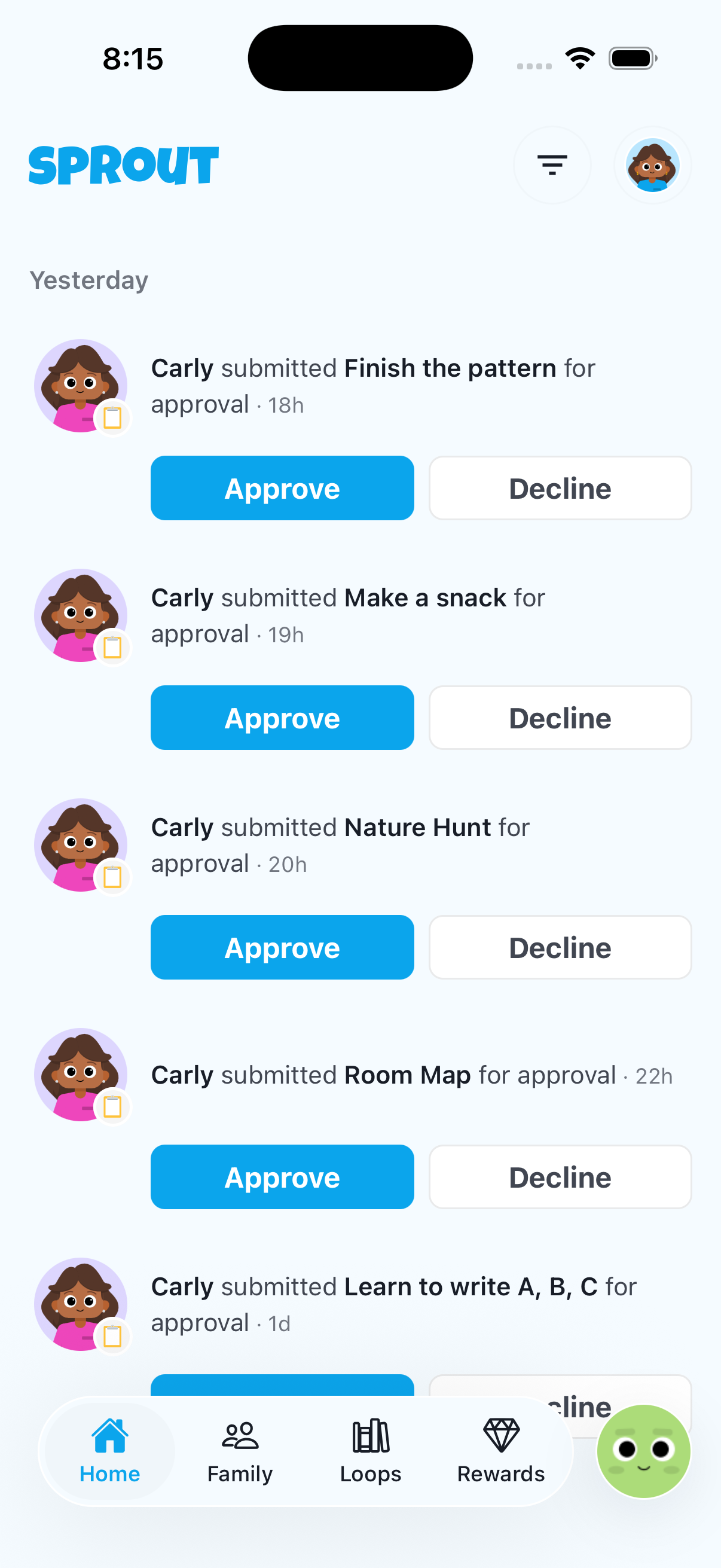
Tasks are the things your child does, from chores to learning activities. Some tasks open a canvas, an interactive activity made for your child, like a math drill or a reading game. You create and review everything from the parent app.
Re-pairing a device
If the kid app gets signed out or you move to a new iPad, open the parent app, go to your child’s profile, and generate a fresh pairing code. Scanning it on the iPad reconnects everything; nothing your child earned is lost.
Stuck on any step? Head to contact or write to support@sproutgoodhabits.com and we will walk it through with you.